
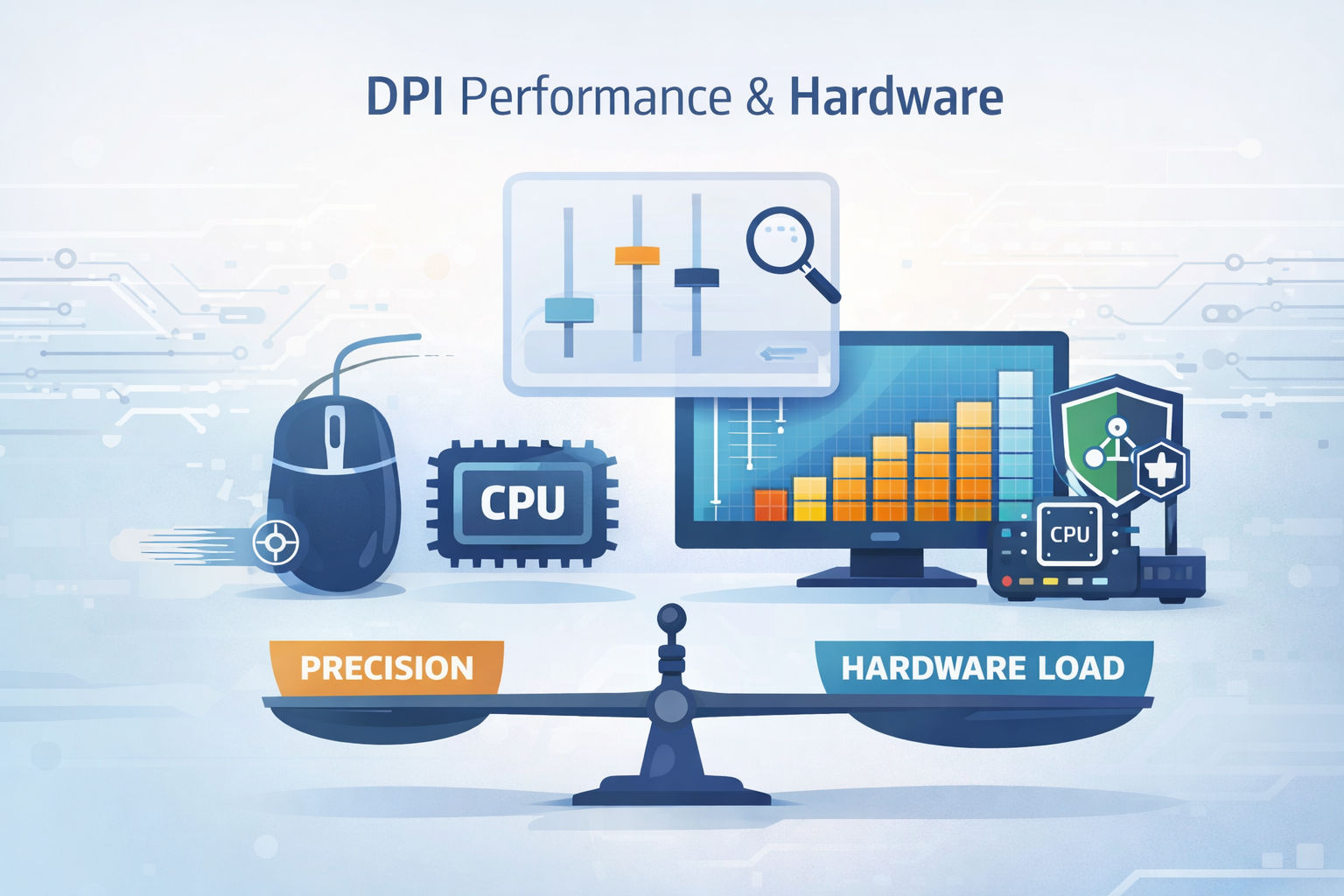
DPI, or Dots Per Inch, is the setting that quietly decides how precise, smooth, and responsive your hardware really feels.
It affects how your mouse tracks, how crisp your screen looks, and how efficiently certain network tools scan and filter data.
When DPI is off, you get lag, jitter, and small delays that pile up into real frustration. When it’s tuned well, everything feels faster, cleaner, more controlled.
This guide breaks down what DPI actually does across your devices and shows you how to adjust it with confidence. Keep reading to dial in DPI for your own setup.
Key Takeaways
- High DPI demands more from your hardware, whether it’s a GPU, a mouse sensor, or a CPU.
- There’s always a trade-off between the benefits of high DPI and the performance overhead it creates.
- Optimizing DPI settings is a practical process of matching capability to your specific task.
The Two Faces of DPI: From Mice to Networks
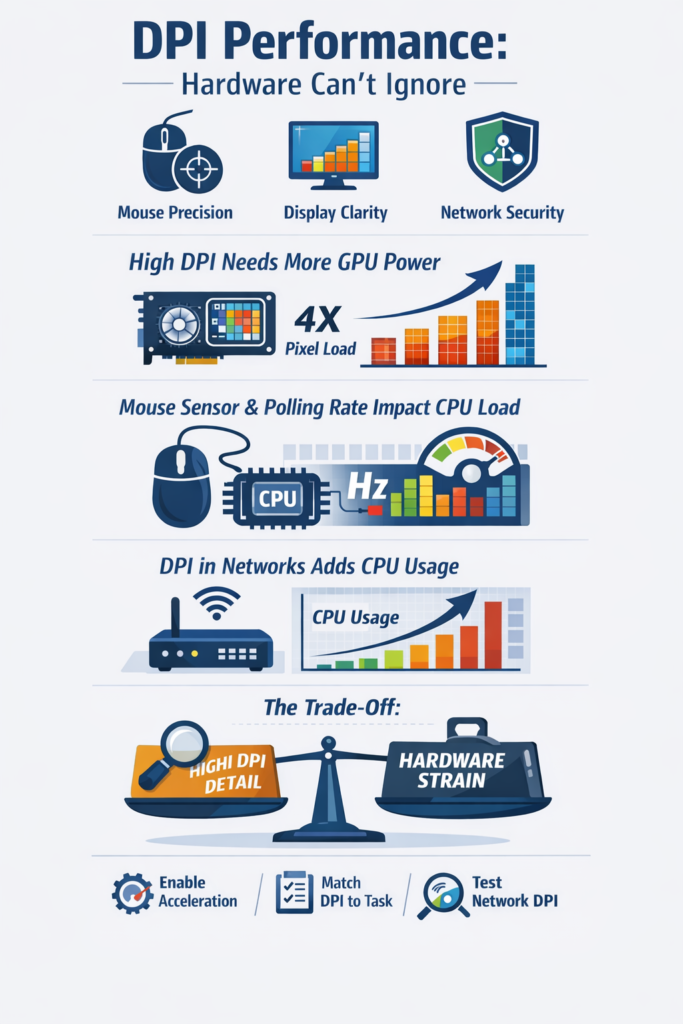
You notice the term “DPI” first on a mouse box, not in a network lab. In gaming and creative work, DPI on a mouse tells you how sensitive the sensor is.
A higher DPI means the cursor moves farther across your screen with less hand movement, so a tiny wrist flick can send your crosshair or cursor from one edge to the other.
But then there’s the other DPI, the one network engineers talk about: Deep Packet Inspection. Here, DPI is a security method where devices like firewalls don’t just check where data is going or coming from, they actually look inside each packet.
They inspect the content, not just the header, to spot threats, misuse, or odd behavior on the network. This kind of packet inspection is a key part of modern network threat detection. These two meanings of DPI live in very different worlds, one on your desk, one in your data center,
Both impose hardware demands, sensors for mice, CPUs for networks, but operate independently.
- Your mouse sensor needs enough processing power to track motion accurately at high DPI.
- Your firewall or security appliance needs serious compute to inspect every packet deeply without slowing traffic.
In both cases, performance depends on how well the hardware can keep up. The smooth feel of your mouse and the safety of your network both hang on the same tradeoff: more DPI usually means more work for the device, and the challenge is to get that extra detail without breaking the flow.
How High-DPI Displays Strain Your System

Modern monitors with 4K or Retina displays have incredibly high pixel density. This is often called PPI, or Pixels Per Inch, but the performance concept is similar to DPI.
The benefit is undeniable. Text is razor-sharp, and images are stunningly detailed. Your GPU has to work much harder to render all those pixels [1].
A scene that your graphics card renders effortlessly at 1080p might cause noticeable lag at 4K. This is because the number of pixels it must manage quadruples.
The memory on your GPU, the VRAM, also gets consumed faster by high-resolution textures. Without a capable GPU, that beautiful high-DPI display can lead to a sluggish user experience, especially in graphics-intensive applications or games.
- GPU Load: Rendering a 4K image requires four times the processing power of a 1080p image assuming no upscaling tech; modern GPUs mitigate via features like DLSS.
- VRAM Usage: High-resolution assets and textures consume video memory rapidly.
- UI Scaling: Operating systems must scale interface elements, which can introduce latency on underpowered systems.
This is why hardware acceleration is so critical. It offloads these rendering tasks to dedicated parts of the GPU. When enabled, it allows even complex visuals on a high-DPI screen to feel fluid. It’s the difference between a stuttering animation and a smooth one.
| Component | What High DPI Increases | Performance Impact |
| GPU | Pixel rendering workload | Higher GPU utilization and possible frame drops |
| VRAM | Texture and framebuffer usage | Faster memory exhaustion at high resolutions |
| CPU | UI scaling and compositing | Minor latency on underpowered systems |
| Power Consumption | Continuous high-load rendering | Increased heat and reduced battery life |
| System Responsiveness | Rendering and redraw frequency | Slower interactions without hardware acceleration |
The Hardware Behind a Responsive Mouse
A mouse with a high DPI rating, say 16,000 or 26,000, promises lightning-fast cursor movement. The sensor inside the mouse is counting more “dots” per inch of physical movement.
But the raw DPI number is only part of the story. The quality of the sensor itself is what separates a good mouse from a great one [2].
A cheap sensor at a high DPI might introduce jitter or inaccurate tracking. The connection between the mouse and your computer also matters. The polling rate, measured in Hertz (Hz), determines how often the mouse reports its position to the PC.
A high DPI setting combined with a high polling rate, like 1000Hz, can strain the CPU if it’s not a priority task. This is why gaming mice often have onboard memory to store DPI profiles, letting the mouse itself handle the processing.
On a high-resolution monitor, a low DPI setting can feel painfully slow. You have to drag the mouse across your desk multiple times to cross the screen.
The trick is to find a DPI that feels natural for your screen resolution and your task. For precision work like graphic design or sniping in a game, a lower DPI (400-1600) is often better.
It gives you finer control. For general productivity on a 4K monitor, a higher DPI (3200+) reduces physical fatigue. The hardware performance consideration here is about matching the sensor’s capability to the actual workload, avoiding unnecessary processing that can lead to input lag.
Deep Packet Inspection: Security at a Cost
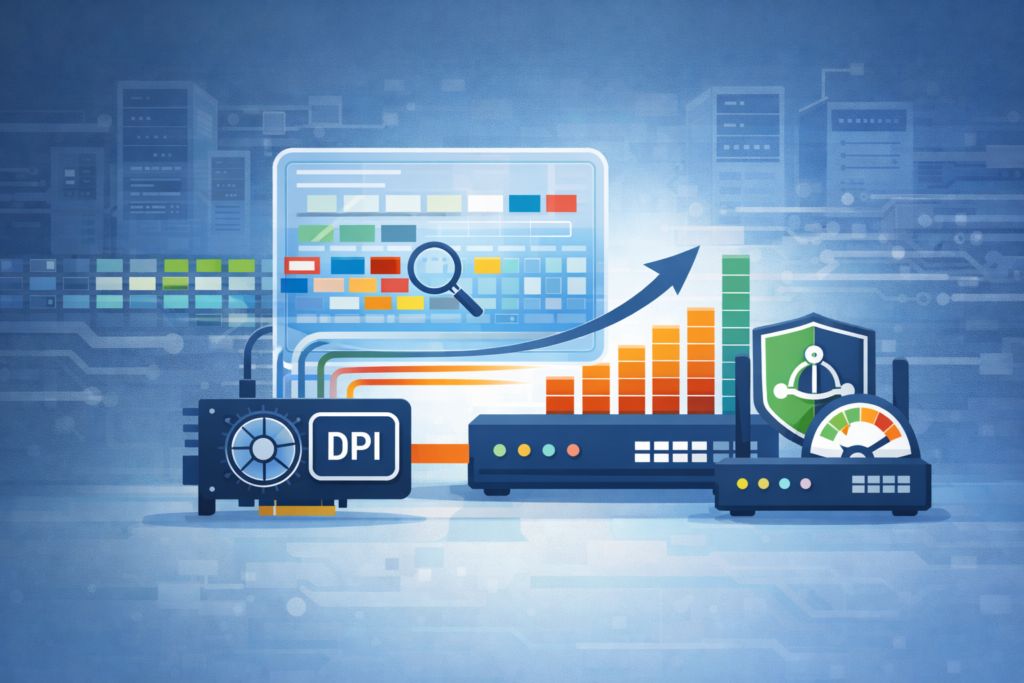
Sometimes the network feels slower than the number your ISP advertises, and the reason isn’t always the cable in the wall. A lot of that difference can come from what your router is doing to every single packet that passes through it.
In networking, DPI stands for Deep Packet Inspection. It’s a technique used in firewalls and routers to strengthen security by looking beyond just the header of a packet. Instead of only checking where the data is going, DPI peeks inside the packet itself. It can analyze the contents to detect:
- Malware or suspicious patterns
- Specific applications (like streaming, gaming, or file sharing)
- Policy violations, such as blocked services or disallowed traffic.
- This inspection process is central to deep packet inspection technology that enables granular control over network traffic.
All of that inspection comes at a cost. DPI is computationally expensive. Every packet that moves through the router has to be opened, inspected, and matched against rules. That constant analysis consumes CPU cycles.
On a router with a modest processor, turning on DPI can noticeably cut into your internet throughput. You might be paying for a gigabit connection, but with DPI enabled, you may only see 700 or 800 megabits per second in practice.
The trade-off is pretty straightforward: more security and control, less raw speed. Hardware makers try to ease this bottleneck in several ways.
High-end network appliances use multi-core processors so they can split the inspection workload across several CPU cores. Some devices go further and rely on specialized hardware such as:
- ASICs (Application-Specific Integrated Circuits)
- FPGAs (Field-Programmable Gate Arrays)
These chips are designed for narrow, focused tasks like packet inspection, and they can handle DPI far more efficiently than a general-purpose CPU. For a home user or a small office, the performance hit from DPI might be acceptable, especially if the traffic volume isn’t huge.
For a business that pushes large amounts of data, though, the choice of hardware becomes critical. They need gear that can perform DPI at line-rate, meaning it can inspect traffic at full speed without becoming the choke point in the network.
Navigating the Performance Trade-Offs
Every decision involving DPI is a balancing act. You are trading a performance benefit for a hardware demand. A sharper image requires a more powerful GPU.
A faster cursor needs a quality sensor and a stable connection. Tighter network security asks for a robust CPU. There is no one-size-fits-all setting.
Optimizing deep packet inspection benefits means ensuring your hardware can handle the workload without becoming a bottleneck.
The optimal configuration depends entirely on your hardware and what you’re trying to accomplish. The goal is never to simply maximize DPI.
It’s to find the sweet spot where the benefit is realized without introducing negative performance consequences like lag, jitter, or bandwidth throttling. This requires a bit of testing and tuning on your specific system.
- For Displays: Enable hardware acceleration in your OS and graphics drivers. Ensure your GPU is adequate for your monitor’s native resolution.
- For Mice: Use your mouse’s software to create different DPI profiles for different tasks (e.g., a low-DPI profile for gaming, a high-DPI profile for work).
- For Networking: If your router allows, test your internet speed with DPI enabled and disabled. Understand the performance impact so you can make an informed security decision.
Tuning Your System for DPI Harmony
The path to optimal DPI performance is practical, not theoretical. Start by assessing your primary use case. Are you a gamer, a designer, or someone managing a network? Then, look at your hardware specifications.
Does your GPU match your monitor’s demands? Does your mouse have a reputable sensor? Does your router have a multi-core processor? Finally, experiment. Adjust your mouse DPI and see how it feels. Check your network speeds with different security settings.
The best configuration is the one that feels instantaneous and unobtrusive. It’s the point where technology serves you, not the other way around. Your hardware is capable of great things when DPI is considered not as a standalone feature, but as an integral part of the performance puzzle.
FAQ
How does hardware affect deep packet inspection performance in real networks?
Hardware directly determines deep packet inspection performance because inspection workload increases with traffic volume and inspection depth.
Limited CPU capacity, insufficient memory, or weak packet processing pipelines reduce network traffic inspection speed.
High-performance DPI requires adequate hardware resources, efficient parallel processing, and stable packet processing rates to avoid bottlenecks during continuous real-time analysis.
What causes DPI latency impact during high traffic periods?
DPI latency impact occurs when inspection demand exceeds available compute capacity. High CPU utilization, increased memory consumption, and inefficient workload distribution slow packet handling.
Encrypted traffic further increases TLS decryption overhead. Without proper DPI throughput optimization and hardware offloading, inspection latency rises and causes visible performance degradation during peak network traffic.
When should DPI hardware acceleration be considered?
DPI hardware acceleration should be considered when software-based inspection cannot sustain required throughput.
ASIC-based DPI, FPGA acceleration for DPI, and network processor DPI reduce processing overhead and improve packet classification speed.
These approaches support multi-gigabit throughput and line-rate inspection, allowing DPI systems to maintain real-time enforcement without increasing latency.
How can organizations size hardware for DPI scalability?
Organizations should size DPI hardware based on traffic volume, packets per second, and inspection depth requirements.
Capacity planning must include peak traffic behavior, encrypted traffic inspection demands, and expected growth. Proper DPI hardware sizing ensures scalability, prevents performance constraints, and allows consistent inspection without throughput loss as network usage increases.
What metrics matter most for DPI performance tuning?
DPI performance tuning relies on clear metrics such as throughput versus latency, packet processing rate, and rule matching efficiency.
Monitoring CPU utilization, memory consumption, and inspection latency helps identify bottlenecks. Performance benchmarking and stress testing reveal behavior under load, enabling adjustments that preserve stable real-time inspection and consistent appliance performance.
Why Hardware Is the Deciding Factor in DPI Performance
DPI is not about chasing the highest number, but about balance. Whether you’re moving a mouse, driving a high-resolution display, or inspecting network traffic, DPI always places real demands on hardware.
When those demands exceed what your system can comfortably handle, performance suffers. The smartest approach is alignment: match DPI settings to hardware capability and real-world tasks.
When tuned correctly, DPI disappears into the background, and everything simply feels fast, smooth, and reliable. Ready to optimize your setup? Join us now and make performance work for you.
References
- https://news.ycombinator.com/item?id=22617091
- https://www.corsair.com/us/en/explorer/gamer/mice/what-is-dpi-does-it-affect-gaming/