
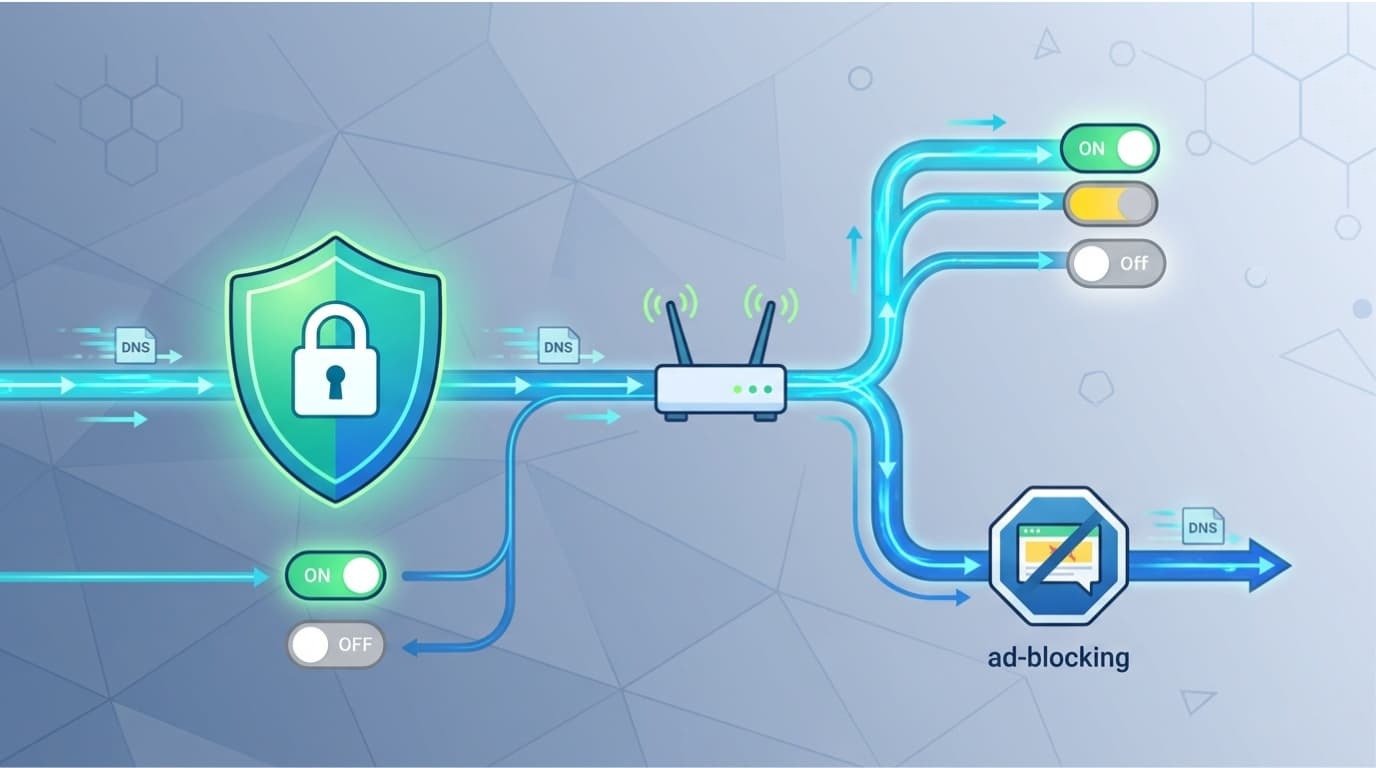
Choosing a secure public DNS provider means checking how well it blocks harmful websites, protects user data, and keeps DNS queries private. Quad9 is a strong choice for malware blocking, while Cloudflare focuses on speed and privacy. NextDNS offers custom filtering rules. These features also support Network Threat Detection by helping identify requests to known harmful domains.
But DNS alone can’t protect an entire network. Provider logging, DNSSEC support, and device security also matter. Keep reading to compare these providers and find the right one for your network.
Secure Public DNS Providers for Safer Browsing
Choosing a secure public DNS provider means looking at how well it protects against online threats, keeps your data private, and handles connection speed. Other security tools also help protect your network.
- Compare provider features: Quad9, Cloudflare, Google Public DNS, NextDNS, Control D, and AdGuard Home offer different threat-blocking and privacy features. Some also allow custom filters.
- Understand DNS protection: DoH and DoT encrypt DNS queries. DNSSEC checks if DNS responses are valid. But neither makes browsing fully safe or anonymous.
- Test before switching: Check DNS speed with your ISP. Set up your primary and backup DNS addresses correctly.
- Use layered security: Secure DNS can block access to harmful domains. But it should work with device protection, firewalls, and Network Threat Detection.
What Should You Compare When Choosing a Secure Public DNS Provider?
A good secure public DNS provider should block online threats, protect user data, encrypt DNS queries, and provide stable connections.
Before changing DNS settings, we recommend checking these seven areas:
- Threat protection: Does the provider block malware, phishing, spyware, and botnet domains?
- Privacy: Does it store user IP addresses or temporary DNS logs?
- Encryption: Does it support DNS over HTTPS (DoH) or DNS over TLS (DoT)?
- DNSSEC: Does it check DNS responses to reduce the risk of fake or changed records?
- Filtering: Can users set their own blocklists and content rules?
- Performance: How fast does it answer DNS requests through your ISP?
- Compatibility: Does it work with routers, computers, phones, and other connected devices?
These checks help us compare different DNS security measures and see the difference between a basic DNS service and one built for better network security.
For example, encrypted DNS protects queries from being read in transit, but it doesn’t block every harmful website. A fast DNS service might also lack malware protection.
In our security work, we look beyond DNS settings. Our threat models and risk analysis tools help us spot possible attack paths and assess new network threats. So, we recommend checking security and privacy before comparing speed. A slightly faster DNS response isn’t worth weaker protection.
Which Public DNS Providers Offer the Strongest Security?
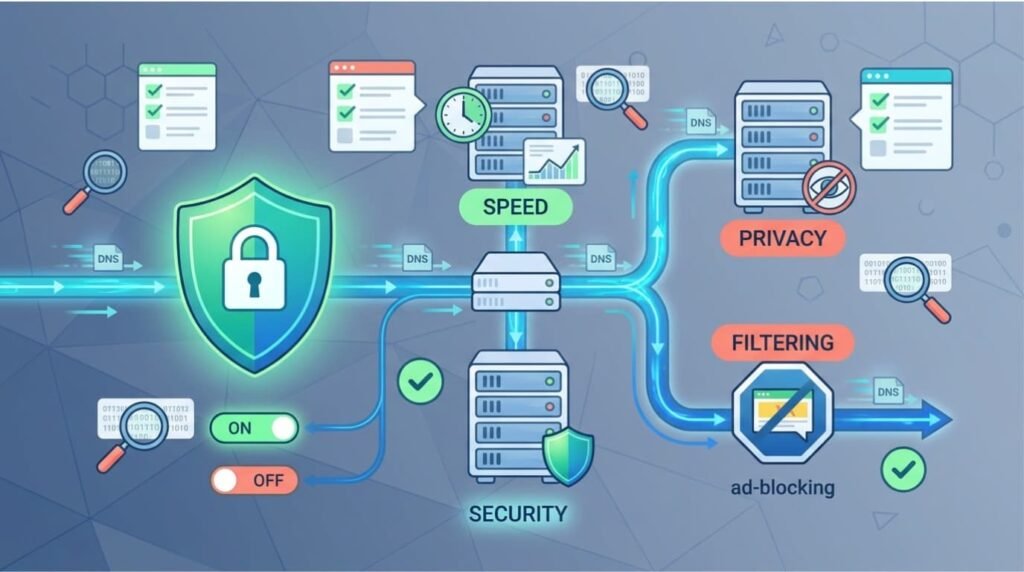
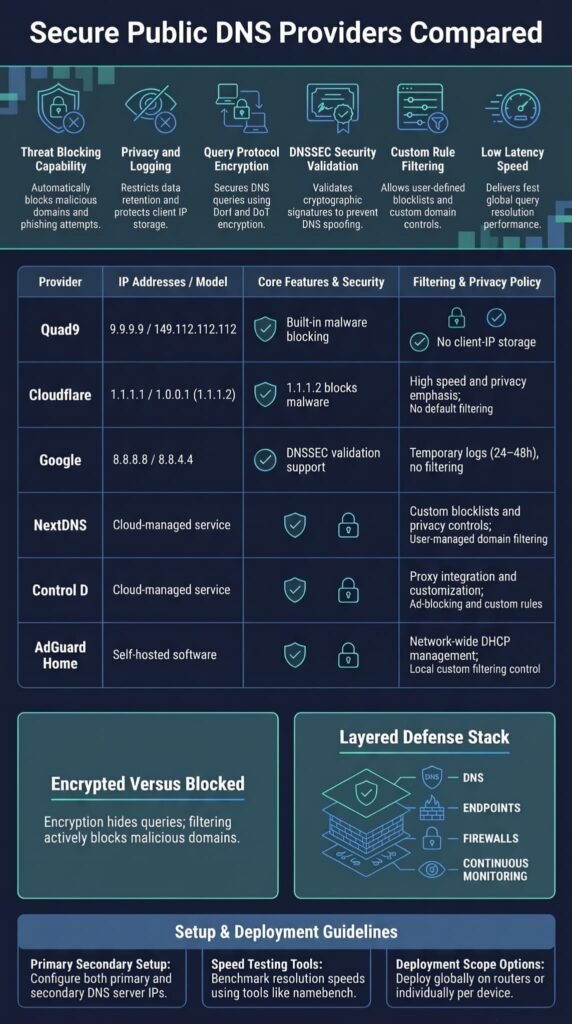
Quad9 blocks known harmful domains by default. Other public DNS providers focus on different needs, such as privacy, speed, or custom filtering. We compare five options below to show what each one offers.
| Provider | Best For | Main Security Features |
| Quad9 | Threat blocking and privacy | Malware blocking, DNSSEC, no client-IP storage |
| Cloudflare | Speed and privacy | DoH/DoT, optional malware filtering |
| Google Public DNS | Stability and compatibility | DNSSEC validation |
| NextDNS | Custom filtering | Configurable policies and blocklists |
Quad9 uses 9.9.9.9 as its primary DNS address and 149.112.112.112 as its backup. Its security-focused service blocks known harmful domains by default.
Cloudflare offers several DNS options. Its standard service uses 1.1.1.1 and 1.0.0.1. For malware blocking, users can choose 1.1.1.2 instead.
Google Public DNS uses 8.8.8.8 and 8.8.4.4. It checks DNS responses with DNSSEC, but its standard service doesn’t automatically block harmful domains.
NextDNS gives users more control over filtering rules.
The main difference is how each provider handles threats. In our network risk checks, we look at more than DNS settings. So, check the exact DNS addresses and security features before setting up a provider on your devices.
Is Quad9 More Secure Than Cloudflare and Google DNS?
Quad9 blocks known harmful domains by default, giving it an advantage over the standard versions of Cloudflare and Google Public DNS. The main difference is what happens when someone tries to visit a website linked to a known threat. Quad9 can block the request, while standard Cloudflare and Google DNS usually resolve it.
Why Does Quad9 Appeal to Security-Conscious Users?
Quad9 is a good option for users who want DNS threat protection without setting up their own blocklists.
Its security-focused resolver includes several useful features:
- Malware and phishing protection: Blocks domains linked to harmful activity.
- Spyware and botnet protection: Helps stop connections to known harmful servers.
- DNSSEC validation: Checks if supported DNS responses are genuine. Properly implementing DNSSEC helps verify DNS data and reduce the risk of forged responses.
- Privacy protection: According to the supplied provider comparisons, Quad9 does not store client IP addresses.
- NXDOMAIN responses: Returns a message that the domain doesn’t exist when a request is blocked.
This protection can help reduce the risk of visiting websites linked to known threats. But it has limits. A new phishing website might not appear on a blocklist right away.
That’s why we look beyond DNS filtering when checking network security. Our threat models and risk analysis tools help identify possible attack paths and assess new threats that DNS filters might miss.
What Are the Limitations of Cloudflare and Google DNS?
Standard Cloudflare and Google Public DNS focus on finding website addresses. They don’t automatically block known harmful domains in their standard versions.
Here’s how their main features compare:
| Feature | Cloudflare Standard | Google Public DNS |
| Primary DNS | 1.1.1.1 | 8.8.8.8 |
| Secondary DNS | 1.0.0.1 | 8.8.4.4 |
| Standard threat filtering | No | No |
| DNSSEC validation | Yes | Yes |
| DoH/DoT support | Yes | Yes |
| Main advantage | Speed and privacy | Stability and compatibility |
Cloudflare also offers other DNS addresses. 1.1.1.2 blocks known malware domains, while 1.1.1.3 adds adult-content filtering.
Google Public DNS also keeps temporary technical logs. These can include IP addresses. According to the supplied comparisons, Google says temporary logs are subject to deletion within 24-48 hours, although it may retain information longer solely to address security or abuse issues.
Pro tip: Encrypted DNS doesn’t mean harmful websites are blocked. DoH and DoT protect DNS queries while they travel across a network. DNS filtering decides whether a website address should be allowed or blocked.
Keep this difference in mind when choosing DNS for personal devices or business networks. A secure connection helps protect DNS traffic, but filtering adds another layer of defense.
Quad9 vs Cloudflare vs NextDNS: Which Privacy Tradeoff Matters Most?
Quad9 focuses on blocking harmful domains and protecting user privacy. Cloudflare puts more focus on speed and privacy, while NextDNS gives users more control over filtering rules.
Your choice depends on how much control you need over DNS activity and how much you trust an outside provider with your data.
| Consideration | Quad9 | Cloudflare | NextDNS |
| Threat blocking | Built in | Optional | Custom rules |
| Privacy | No client-IP storage, according to supplied comparisons | Privacy-focused policies | Depends on logging settings |
| Encryption | DoH/DoT | DoH/DoT | DoH/DoT |
| Main advantage | Automatic threat blocking | Speed and privacy | Custom filtering |
Encrypted DNS changes who can see your DNS traffic. Regular DNS queries can be seen by network providers along the way. With DoH or DoT, the queries travel through an encrypted connection to your chosen DNS provider.
But there’s a tradeoff. The DNS provider may still see your queries. Because the resolver provider processes DNS queries, encrypted DNS shifts trust from the local network/ISP to the chosen DNS provider.
Before switching, we recommend checking three things:
- Logging policy: Does the provider store IP addresses or DNS queries?
- Data retention: How long does it keep temporary records?
- Filtering controls: Can you change security rules to fit your needs?
A provider with many custom settings may suit network administrators. But a basic resolver can be easier to manage. Choose one that matches your security needs and the level of control you want.
When Should You Choose Control D Instead of Traditional Public DNS?
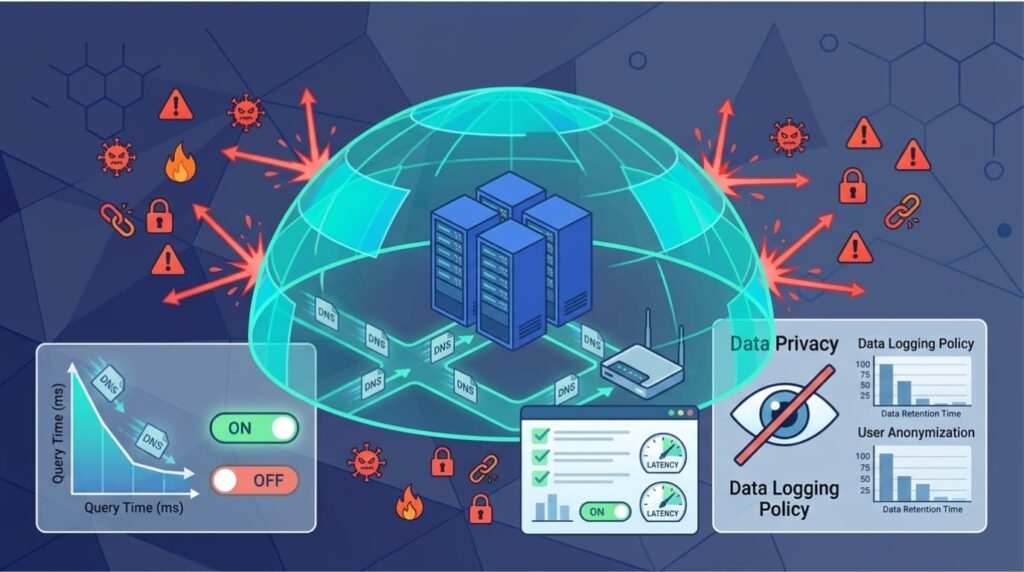
Control D is a good option for users who want more DNS filtering options and control over which websites their devices can access.
Basic public DNS services mainly look up website addresses. More advanced services let users set rules to block certain types of websites or limit access across connected devices.
What Makes Control D Different?
Control D gives users more ways to manage DNS settings than a basic resolver.
Users in online discussions often mention features such as:
- Custom DNS filtering rules.
- Ad-blocking features.
- Extra proxy options.
- Settings for different browsing needs.
These features give users more control. For example, a family might block adult websites, while a business might block domains linked to suspicious activity.
But more settings also mean more work. We recommend checking what each option does before using the same rules across an entire network. A wrong setting could block websites that employees or family members need.
What Should You Check Before Switching?
Before choosing a DNS service, review these details:
- Available filters and blocklists.
- Privacy and data logging rules.
- Support for DoH and DoT.
- DNS speed through your ISP.
- Support for routers and connected devices.
Don’t forget to check the provider’s latest pricing and feature list. Some features may have changed since older reviews were published.
Can AdGuard Home Provide More Control Than Public DNS?
AdGuard Home is a self-hosted option for users who want more control over DNS filtering and website blocking across their network.
Unlike a public DNS service, it lets network administrators run and manage their own DNS filter. This gives them more control over which websites connected devices can access.
Why Consider AdGuard Home?
AdGuard Home lets users manage blocklists, set filtering rules, and control DNS requests.
For example, a household administrator can block certain websites for every device on the network. There’s no need to install a separate blocking tool on each phone or computer.
It can also manage devices that connect to the same router through DHCP. Once set up, these devices can use the local DNS server without needing separate filter settings.
But there’s more work involved. The administrator must manage the software, hardware, DNS forwarding, and network settings to keep the service running.
What Are the Limitations?
AdGuard Home needs setup and regular checks. If the local server stops working or has the wrong DNS settings, connected devices might not be able to open websites.
We also need to separate AdGuard Home from AdGuard Public DNS. AdGuard Home is a self-hosted DNS filtering tool. AdGuard Public DNS is a public resolver service.
User feedback on public DNS speed also varies. Some report slower response times, while others prefer its filtering options.
When we assess network risks, we look at how much control a setup offers and what happens if a service fails.
For a basic setup, a managed public DNS service may be easier to use. But users who manage their own network equipment may prefer the extra control that AdGuard Home offers.
How Do DoH and DoT Protect Public DNS Queries?
Credits: Tutorials With Nathan
DoH and DoT encrypt DNS queries as they travel across a network. This makes it harder for others to read or change DNS requests while they are in transit.
Without encryption, DNS requests may be visible to network providers and other intermediaries. This can expose the names of websites a device tries to visit.
Research from Information Sciences shows
“Encrypted DNS protocols improved privacy, but they did not by themselves resolve issues of scalability, threat detection, or active mitigation. The difficulty lay in identifying malicious traffic concealed inside encrypted flows without sacrificing confidentiality.” – Information Sciences
What Is the Difference Between DoH and DoT?
Both protocols protect DNS traffic, but they use different methods.
- DNS over HTTPS (DoH): Sends DNS requests through encrypted HTTPS connections.
- DNS over TLS (DoT): Uses Transport Layer Security (TLS) to encrypt DNS traffic.
The Internet Engineering Task Force (IETF) defines DoH in RFC 8484. It explains how DNS requests and replies travel through HTTPS connections with privacy and data protection.
Microsoft also explains that DNS encryption and DNSSEC solve different problems. Encryption protects DNS traffic as it travels across a network. DNSSEC checks whether DNS data is valid.
What Protection Do They Not Provide?
Encrypted DNS helps protect your requests, but it doesn’t secure every part of your internet connection.
Keep these three limits in mind:
- Provider visibility: Your chosen DNS provider still handles your DNS requests.
- Threat blocking: Encryption doesn’t automatically detect or block harmful websites.
- Device security: DoH and DoT don’t replace antivirus software, device protection, or safe browsing habits.
DoT may also add a small delay, depending on your router and network connection.
Remember: Encryption protects DNS traffic between your device and the DNS provider. Filtering blocks known harmful domains. Both help protect your network, but they do different jobs.
Why Does DNSSEC Matter When Comparing Secure Providers?
DNSSEC checks DNS responses to help stop attackers from changing DNS data or sending users to fake websites.
As noted by ICANN
“DNSSEC is designed to protect Internet resolvers (clients) from forged DNS data, such as that created by DNS cache poisoning. Currently, a DNS resolver sends a query out to the Internet and then accepts the first response it receives, without question. If a malicious system were to send back an incorrect response, the resolver would use this address until its cache expired.” – ICANN
When a device looks up a website, DNSSEC lets the DNS resolver check digital signatures linked to the DNS records. These signatures help confirm that the response is genuine and hasn’t been changed.
Before choosing a DNS provider, we recommend checking three things:
- Validation support: Does the resolver check DNSSEC signatures?
- Response integrity: Does it reject DNS responses with invalid or missing signatures when validation is required?
- Protocol support: Can you use DNSSEC with your chosen encrypted DNS setup?
Quad9, Cloudflare, and Google Public DNS all support DNSSEC validation.
But DNSSEC and encrypted DNS do different jobs. DNSSEC checks if DNS data is valid. DoH and DoT protect DNS traffic as it travels between your device and the resolver.
Using both adds two layers of protection. In our network risk checks, we also use threat models and risk analysis tools to look for risks that these DNS features might miss.
Still, neither one guarantees that every website is safe or blocks every DNS-based threat.
How Can You Test DNS Speed on Your ISP?
Test several DNS providers on your own network before choosing one. Your internet service provider (ISP) and server location can affect response times, so results may differ between users.
- Select providers: Choose options that meet your security and privacy needs.
- Run a benchmark: Use a tool such as namebench to compare response times.
- Repeat the tests: Test at different times and check for slow responses or timeouts.
- Compare results: Look for steady speeds and reliable connections.
HardwareZone users also point out that overseas DNS servers can perform differently depending on ISP routing. DoT may add a small delay, although the effect depends on your router and network.
Use the results to narrow your choice. Pick a provider with consistent response times and the security features your network needs, rather than choosing the one with the fastest single result.
How Should You Configure Secure DNS on Your Router?
Router-level DNS settings let us apply one set of DNS rules across several connected devices. This saves time because there’s no need to change the settings on every computer, phone, or smart device.
This setup can suit households and small businesses with many connected devices. The recursive DNS server also plays an important role in resolving domain requests, so its security and configuration deserve attention. Check your router’s features first because not every router supports encrypted DNS.
Follow these steps to configure a secure DNS resolver:
- Check router compatibility. Open the router’s administration panel and see if it supports DNS over HTTPS (DoH) or DNS over TLS (DoT).
- Choose a DNS provider. Compare providers based on their filtering, privacy, and speed.
- Enter the DNS addresses. Add the provider’s primary and secondary DNS addresses in the correct fields.
- Enable encryption. Select DoH or DoT if both your router and DNS provider support it.
- Save the settings. Apply the changes and restart the router if needed.
- Test the connection. Check that connected devices can open websites and use the selected DNS service.
Should You Configure DNS on Each Device or Your Router?
Both options work. The right choice depends on how much control each user needs.
- Router configuration: Applies DNS settings to devices across the network.
- Individual device configuration: Lets users apply different DNS rules to specific devices.
- Business networks: May need extra controls to stop devices from bypassing approved DNS settings.
For Windows users, DNS settings are usually found under Network and Sharing Center, adapter settings, and Internet Protocol properties. The exact steps depend on the Windows version. Some versions also offer encrypted DNS options in the network settings.
One mistake we’ve seen in network setups is changing several DNS settings at once. This makes it harder to find the cause if the internet stops working. Change one setting at a time, and keep a record of the original configuration. If the connection fails, restore the previous settings before trying again.
Also, a secondary DNS address does not always act as a secure backup. Devices and operating systems may choose between DNS servers based on their own rules. Check how your router handles secondary resolvers before relying on one for backup protection.
Does Switching to Public DNS Make Your Network Fully Secure?
Public DNS can improve some security controls, but it cannot protect a network from every online threat.
DNS filtering blocks requests to known malicious domains. But attackers use other methods to spread malware, steal login details, and access devices. New threats may also go undetected.
The table below compares common beliefs with what public DNS can really do.
| Common Belief | What Actually Happens |
| Encrypted DNS makes browsing anonymous | The DNS provider can still process queries. |
| Filtering blocks every malicious website | Some threats may go undetected. |
| Public DNS removes all ISP restrictions | DoH does not always bypass network blocks. |
| DNS switching replaces security software | Endpoint protection is still needed. |
| A faster resolver means better security | Speed and threat protection are separate measures. |
Discussions on HardwareZone and LowYat raise a similar concern. Public DNS filtering alone cannot provide full network security.
For example, a newly registered phishing domain may not appear on a DNS blocklist yet. A user’s device could still connect to it.
That’s why DNS filtering should work alongside endpoint protection, firewalls, and network monitoring. Our threat models and risk analysis tools help identify security gaps and assess emerging threats.
Use DNS as one layer of protection, not as a replacement for other security controls.
FAQ
What Should You Check in a DNS Provider’s Privacy Policy?
Your DNS provider processes DNS queries to translate domain names into IP addresses. Before choosing a DNS service, check which details it logs, how long it retains those records, and whether it shares them with third parties.
The privacy policy should explain these practices clearly. Also, check whether the provider supports encrypted DNS protocols to protect queries between your device and its servers.
How Do You Change DNS Server Addresses on Your Device?
You can change DNS server addresses through your device’s network or adapter settings. Record your current DNS address before replacing it, then enter the Primary DNS and secondary DNS addresses provided by your chosen provider. If your device uses DHCP, check whether your router assigns DNS settings automatically. Save the changes, reconnect to the network, and test several websites to confirm that the new settings work.
Why Should You Configure a Secondary DNS Server?
A secondary DNS server provides an alternative when the primary server becomes unavailable. Enter the secondary nameserver address supplied by your DNS provider, unless its setup instructions recommend another configuration.
Using servers with different filtering policies can produce inconsistent results. Check both DNS IP addresses, save the settings, and test domain resolution to confirm that your device can still access websites if the primary server stops responding.
Can Secure DNS Protect Your Network From Every Online Threat?
DNS filtering can block requests to known infected websites and domains associated with DNS-based threats. However, it cannot detect every hidden threat or prevent all sophisticated attacks.
Threat actors may use newly registered domains, compromised accounts, or malicious files to bypass DNS filtering. Combine Secure DNS with endpoint protection, firewalls, and regular software updates to strengthen your network’s overall security.
Can Changing DNS Providers Improve Internet Connection Speed?
A DNS provider can affect browsing speed because your device must resolve domain names before connecting to websites. Compare DNS response times from your location and test your internet connection speed before and after changing providers.
Slow responses may result from server distance, network congestion, or filtering delays. Choose a provider that offers reliable DNS resolution, suitable privacy protections, and effective threat blocking.
Make DNS Security Part of a Stronger Network Protection Strategy
Choosing a secure DNS provider is a good first step, but it won’t protect your network on its own. Businesses should combine DNS filtering with endpoint protection and network monitoring to better identify and prevent threats.
Network Threat Detection helps security teams spot hidden risks through real-time threat modeling, CVE mapping, and attack path analysis. Its solutions support more informed security decisions and help teams address weaknesses before attackers exploit them. Explore Network Threat Detection and see how it can strengthen your security strategy.
References
- “Article Title and Author Metadata Not Verified.” ScienceDirect. Accessed November 2, 2026.
- “DNSSEC Frequently Asked Questions.” Internet Corporation for Assigned Names and Numbers (ICANN). Accessed November 2, 2026.